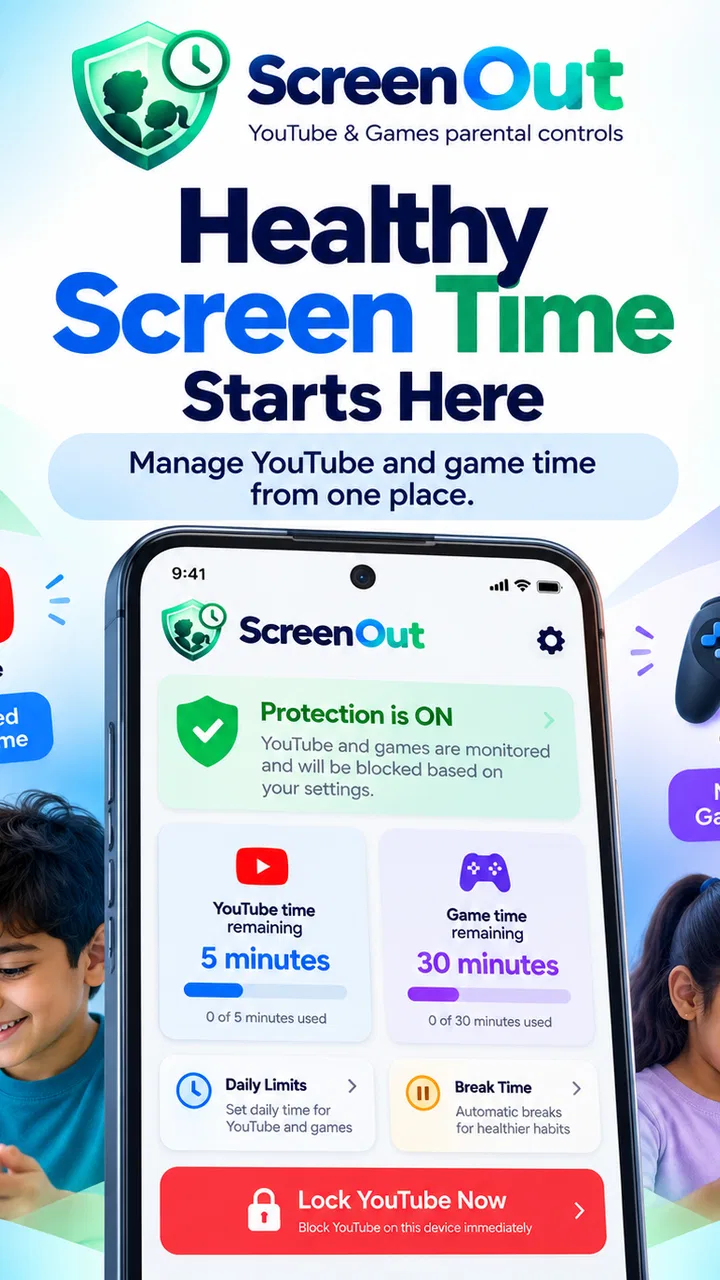
YouTube Lock - Parent Control
- 0.0
- Rating
- 10.00K
- Installs
- Free
- Price

 Analysis by App-foxy
Parents rarely need another complicated dashboard when the real problem is much smaller: a child opens YouTube, keeps watching, and ignores the agreed stopping time. YouTube Lock - Parent Control takes aim at that specific moment. I see it as a focused parenting app from Delveron rather than a complete family-management system, and that distinction matters when deciding whether it belongs on your phone.
In my experience, the useful question is not simply whether it can limit screen time. The better question is whether you want a tool centered on YouTube, or a broader solution that manages apps, websites, devices, and schedules together. This app makes the most sense for families whose recurring issue is video access on an Android device. It is free to install, marked for Everyone, and currently listed as version 2.4.0, so the barrier to trying it is relatively low.
What I would check before choosing it
I would begin with the child’s actual routine. If the problem is a short burst of videos before school, a long viewing session after homework, or repeated arguments about handing over the phone, a narrow YouTube control can be easier to understand than a full parental-control suite. The smaller scope may also make conversations clearer: the limit applies to one activity instead of making the entire device feel locked down.
You May Also Like

 Blood Strike: 2.5 Anniversary
Blood Strike’s Loadouts Turn Every Drop Into a Tactical Gamble
A close look at Blood Strike’s custom loadouts: how fast access to signature weapons reshapes its battle royale rhythm, rewards preparation, and narrows the gap between fights.

 Pandora - Music & Podcasts
Pandora’s Music Is Easy to Start, but Harder to Recover
Pandora’s strength is its low-effort path from a seed to a station. Its weak spot is how much confidence it asks you to place in connection, setup, and quiet recovery.

 8 Ball Pool
 Is Built on Rivalries, Rematches, and Routine
A close look at the rivalries, rematches, shared routines, and unanswered safety questions that turn a quick pool match into a persistent mobile community.

 Samsung Music
’s Quiet Strength Is Playing What You Already Own
Its reach comes less from spectacle than from dependable access to a personal library. That simplicity is both the app’s strongest retention engine and its ceiling.

 AccuWeather: Weather Radar
AccuWeather Review: A Quick, Clear Forecast for Everyday Decisions
For everyday plans, the best forecast is the one you can understand quickly. AccuWeather makes rain timing, radar, and local conditions easy to act on, with a few trade-offs.

 Hill Climb Racing
Why Hill Climb Racing Still Turns Crashes Into One More Run
A tiny car, a bumpy hill and one more upgrade: Hill Climb Racing keeps resurfacing because its simple chaos makes every near-miss feel personal.
More From Our News Desk
View All News


If your family needs bedtime rules across games, browsers, social networks, and streaming services, I would judge this app more cautiously. A YouTube-focused tool should not be treated as a replacement for device-level family controls. Its appeal comes from concentrating on one high-distraction service, not from promising to organize every part of a child’s digital life.
Compatibility is another practical checkpoint. The app requires Android 7.0 or later, which covers many devices still used as children’s phones or tablets. I would still install it on the device that the child actually uses, rather than assuming that setting it up on a parent’s phone will control a separate device automatically. With parental tools, the location of the setup is often just as important as the feature list.
The app has passed the ten-thousand-install mark, and it is free at the basic download level. Optional in-app purchases are listed at forty-nine cents per item. I would not interpret that small price as proof that every useful control is included without payment; instead, I would look carefully at the setup screens and purchase prompts before handing the device to a child. The cost is modest, but clarity about what is unlocked still matters.
The everyday problem it handles best
Imagine a weekday evening. Your child has finished dinner and wants to watch a few clips while you prepare things for the next morning. You agree on a stopping point, but the transition becomes difficult because every video leads to another recommendation. In that situation, a dedicated YouTube limit can act as a neutral boundary. The conversation becomes less about a parent suddenly changing their mind and more about a rule that was set before viewing began.
That change in tone is one of the less obvious benefits of a focused tool. Parents often spend as much energy enforcing a rule as creating it. A control aimed specifically at YouTube can reduce the need to negotiate each individual session. I would still explain the rule in advance, because a lock that appears without warning may feel like punishment rather than routine management.
Another useful scenario is shared household equipment. If a tablet is passed between siblings, the parent may want to keep YouTube from becoming an open-ended activity without restricting reading, schoolwork, or music. A YouTube-centered approach can be less disruptive than applying a blanket device limit. The trade-off is that the same control may not reflect different needs if several children use the device at different ages.
Where the focused approach wins
The strongest part of this app is its narrow purpose. Instead of asking parents to understand a large collection of controls, it puts attention on YouTube screen time and parental restrictions. That focus can make the first decision easier: install it when video viewing is the problem, configure the boundary, and observe whether family routines improve.
I also like the possibility of using it as a stepping stone. Some families are not ready for strict device-wide supervision, especially with older children who expect more independence. Starting with one troublesome service can create a manageable agreement. After a week, you can decide whether the arrangement is working, whether the child is respecting the boundary, and whether broader controls are actually necessary.
There is a practical communication advantage too. A parent can say, “YouTube ends at the agreed time,” instead of presenting a complicated list of blocked categories. That simplicity does not solve every disagreement, but it gives the rule a clear subject. For younger children, fewer moving parts can make the expectation easier to remember.
One tip I would use is to pair the limit with a replacement activity. A lock can stop viewing, but it does not fill the next ten minutes. Have a book, bath routine, snack, or offline game ready before the session ends. This is especially important when the app is introduced to a child who has been allowed to continue watching whenever a new clip appears.
A second tip is to test the boundary while you are present. Do not wait until the first rushed school morning or bedtime to discover that the setup does not match your household routine. Run a short trial, check what the child sees when the limit is reached, and make sure everyone understands what happens next. This is not about searching for hidden functions; it is basic preparation that prevents the tool from becoming another source of conflict.
Limits that should influence your decision
The same specialization that makes the app approachable can make it insufficient. A child who moves easily from YouTube to a browser, game, or another video app may simply switch activities once the boundary appears. If the real concern is total screen use, rather than YouTube specifically, a built-in family setting or a broader parental-control product may fit better.
I would also avoid assuming that a time limit replaces supervision. Children may still encounter unsuitable recommendations, comments, or links depending on how they use the service. A control over duration addresses when viewing stops; it does not turn every video into age-appropriate content. Parents should continue choosing suitable settings and discussing what to do when something uncomfortable appears.
Shared devices create another complication. A single rule may be convenient when one child owns the tablet, but less fair when siblings have different schedules. In that case, I would consider whether a broader family-management option offers separate profiles or device rules that better match the household. I would not choose this app simply because it is easier to install if the underlying routine requires individual treatment.
The purchase model also deserves attention. The app is free, but some items cost forty-nine cents each. That is not a major expense by itself, yet small purchases can become confusing if a parent expects one payment to cover every possible control. Before relying on it for a long-term routine, I would identify which functions are available immediately and which require an optional purchase. A clear setup is more valuable than a low headline price.
Because it is an Android app, it is not the natural choice for a household that mainly uses iPhones or iPads. The stated minimum operating system is Android 7.0, so platform compatibility should be checked before planning a mixed-device routine around it. For families with several operating systems, a cross-platform service may create less friction, even if it is less focused on YouTube.
How it compares with the usual alternatives
The first alternative is the device’s own family controls. These are usually the better starting point when you want to manage total daily use, app downloads, bedtime access, or several categories at once. Their advantage is breadth and integration. Their disadvantage, from my perspective, is that they can feel heavier to configure when the only recurring issue is YouTube.
The second alternative is a broad parental-control suite. That category is appropriate for parents who want one place to oversee multiple devices or services. It may offer a more complete picture of a child’s digital routine, but a larger system can take more time to learn and may introduce rules that the family does not yet need. I would choose that route when YouTube is only one part of a wider concern.
The third alternative is a household agreement without an app. This can work surprisingly well with older children who respond to trust and predictable consequences. It costs nothing and encourages communication, but it depends on the child stopping voluntarily or handing over the device. When repeated reminders have already failed, an automated boundary may be more realistic than another conversation.
A fourth option is simply removing YouTube access from the child’s device. That is the clearest restriction, but it is also the least flexible. It may block educational videos, music, family viewing, or a useful way to occupy a short waiting period. A time-based approach is more suitable when the goal is moderation rather than a complete ban.
The important trade-off is control versus simplicity. Device settings and full suites can cover more ground. A household agreement can preserve trust. Removing the app can be decisive. YouTube Lock - Parent Control sits between those choices: more enforceable than a promise, less comprehensive than a complete family-management system, and more targeted than a total device restriction.
What switching will really involve
Moving from informal rules to an app changes the family routine, so I would treat setup as part of the decision. You need to decide who controls the rule, when it applies, and what the child should do after viewing ends. If those questions are left vague, the app may technically limit access while the household still argues about exceptions.
Switching from a broader parental-control system can be just as disruptive. You may gain a simpler YouTube workflow, but lose the convenience of managing other activities in the same place. I would make that change only when the larger system feels excessive or when YouTube is clearly the main source of conflict. Otherwise, the effort of retraining everyone may outweigh the benefit of a narrower tool.
There is also a social cost to consider. Older children may see a new lock as a sudden reduction in trust. I would introduce it as a trial with a review date rather than as an unexplained permanent punishment. Explain what behavior the rule is meant to support, agree on reasonable exceptions, and ask whether the limit is interfering with homework or family use. A control works better when the child understands its purpose.
For younger children, the opposite may be true: too much explanation can make the rule harder to follow. Keep the routine visual and consistent. Start viewing only after the limit is agreed, give a simple warning before the expected stopping point, and move immediately to the next activity. The app should support the routine, not become the routine.
Who should use it, and who should skip it
I would recommend trying it if you have an Android phone or tablet, your main concern is YouTube, and repeated verbal reminders are not enough. It is particularly promising for parents who want a focused first step instead of a complete monitoring system. The free entry point makes experimentation sensible, provided you review any optional purchases during setup.
I would be less enthusiastic for families seeking detailed supervision across many apps, several operating systems, or multiple children with separate schedules. In those cases, the broader device controls may be worth the extra complexity. I would also skip a YouTube-specific solution if the child’s actual pattern is general late-night phone use; restricting one service may simply move the problem elsewhere.
It is also not the right choice for parents who expect technology to replace conversation. The app can help enforce a boundary, but it cannot decide whether a particular viewing session is educational, calming, social, or inappropriate for the child. Those judgments still belong to the parent. Its value is practical enforcement, not automatic parenting.
My recommendation after weighing the trade-offs
My recommendation is conditional but positive: try YouTube Lock - Parent Control when YouTube is the specific habit you need to moderate on an Android device. Delveron has positioned it in a useful middle ground, and the free starting point lowers the risk of testing that approach. I would use it alongside a clear family routine, not as a standalone answer to every screen-time problem.
The app wins when a narrow rule is better than a complicated one. It can make stopping videos more predictable, preserve access to the rest of the device, and give parents a practical alternative to constant reminders. Its weaknesses are equally clear: the focus may be too narrow, shared-device arrangements may be awkward, and optional purchases deserve a careful look before long-term use.
For my own decision, I would run a short trial during the part of the day when YouTube causes the most friction. I would watch whether the child accepts the boundary, whether the family needs controls outside YouTube, and whether the setup feels fair for everyone sharing the device. If the answer is yes, this is a sensible, focused parenting app. If the problem quickly shifts to other apps, I would stop adding narrow fixes and move to broader device-level controls instead.
Overall, this is best viewed as a precise tool rather than a universal solution. Families that want one clear boundary may appreciate that precision. Families looking for complete digital supervision should choose a wider alternative. That distinction makes the decision straightforward: install it for a YouTube problem, not for a general screen-time problem wearing a YouTube-shaped disguise.
FAQs for YouTube Lock - Parent Control
01What is YouTube Lock - Parent Control, and how does it work?
YouTube Lock - Parent Control is designed to help parents limit access to YouTube on a child’s device. After installation, parents can configure the app to block or restrict YouTube and, depending on the device and version, prevent children from opening it without permission. It is mainly intended as an additional layer of supervision rather than a complete replacement for family discussions and broader parental-control settings.
02Can YouTube Lock - Parent Control completely block YouTube?
The app is intended to prevent unauthorized access to YouTube, but the exact level of blocking can depend on the Android version, device manufacturer, permissions granted, and how the child uses the device. Parents may need to enable accessibility, usage-access, device-administration, or similar permissions for the protection to work correctly. It is important to test the configuration after setup and check whether alternative browsers or installed YouTube versions remain accessible.
03Is YouTube Lock - Parent Control free to use?
Availability of features, advertising, subscriptions, or one-time purchases may vary according to the app version and the store listing in your region. Before downloading, parents should review the current Google Play information carefully, including in-app purchase details and the privacy policy. A free download does not always mean that every protection feature is included without limitations, so checking the available settings first is recommended.
04Does YouTube Lock - Parent Control work on iPhone and iPad?
YouTube Lock - Parent Control is primarily associated with Android-style app-locking and parental-control features, so compatibility should be confirmed before attempting to install it on an iPhone or iPad. Apple devices use different restrictions and permissions, and an Android application cannot normally be installed on iOS. iPhone and iPad users may need to use Apple Screen Time, Content Restrictions, or another iOS-compatible parental-control solution instead.
05Is YouTube Lock - Parent Control enough to keep children safe on YouTube?
No parental-control app can guarantee complete online safety by itself. YouTube Lock - Parent Control can help reduce unsupervised access, but it may not filter every video, prevent access through other apps, or replace YouTube’s own supervised-account tools. Parents should combine it with YouTube safety settings, device-level restrictions, age-appropriate accounts, privacy controls, and regular conversations about inappropriate content, advertising, comments, and online contact.
Pros
- Blocks YouTube access with a simple lock screen.
- Useful for limiting viewing on shared family devices.
- Quick setup without creating a separate child account.
- Can reduce accidental access to unsuitable videos.
- Lightweight design with minimal impact on device performance.
Cons
- May require accessibility or device permissions to work properly.
- Children could bypass restrictions by using another browser or app.
- Protection may be weaker after system updates or app removal.
- Limited control over individual channels
- topics
- or viewing time.
- Some features may depend on the Android version and device settings.

YouTube Lock - Parent Control
Gallery